Manual Trust 16937 Flex Design Tablet gráfico

Precisa de um manual para o seu Trust 16937 Flex Design Tablet gráfico? Abaixo você pode visualizar e baixar gratuitamente o manual em PDF em português. Este produto tem atualmente 0 perguntas frequentes, 0 comentários e tem 0 votos. Se este não for o manual que você deseja, por favor contacte-nos.

Seu produto está com defeito e o manual não oferece solução? Vá a um Repair Café para obter serviços de reparo gratuitos.

Manual

Loading…
Flex Design Tablet – User’s Manual
5
Navigate (Navigate)
14
Clicking:
You can use the pen to click, by simply tapping the tablet’s surface.
15
Double clicking:
You can use the pen to double-click, by simply tapping the tablet’s surface twice.
Double click: By default, the upper button of the pen is configured to act as a double-click
16
Dragging:
To drag and drop an object,
you need to select it (touch the tablet’s surface), move it (move the pen
across the tablet’s surface), and release it (lift the pen from the surface).
Pen Flicks:
Pen Flicks are a feature of Windows Vista and Windows 7/8 that associates the movement of your pen with actions. For
example, performing a pen flick downward produces the same result as pressing the PAGE UP key on your keyboard.
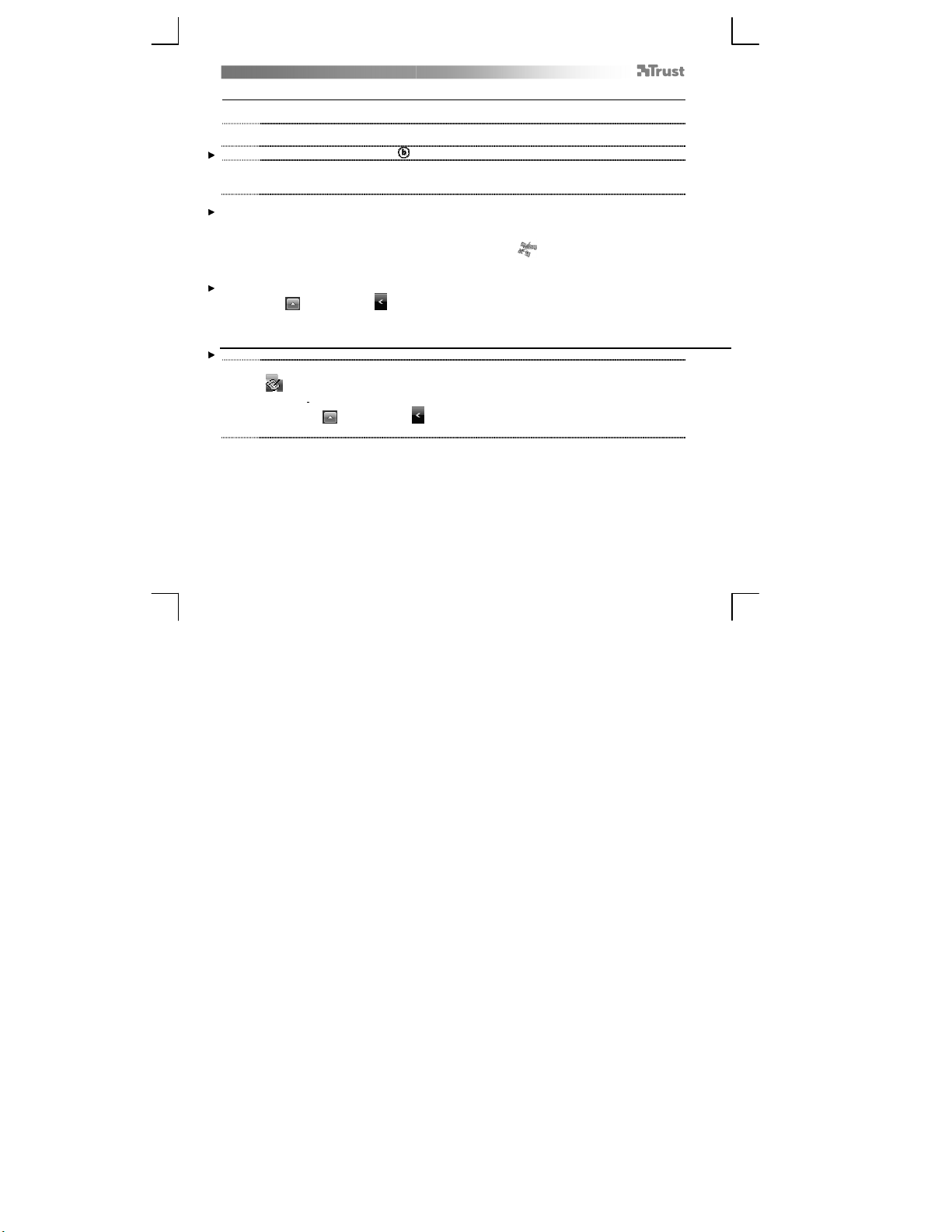
To activate and start using Pen Flicks, double click the Pen Flicks icon ( ) in your System Tray (next to your
computer’s clock) and follow the animated tutorial to learn how to use Pen Flicks.
If the Pen Flicks icon is not visible, click the “Show hidden icons” button first.
(Windows 7/8: / Windows Vista: )
Advanced configuration (Advanced configuration)
The illustrations for the following instructions are located at the end of this manual
17
Click on the Trust icon in your Windows system tray to open the tablet configuration utility.
( next to your computer’s clock)
If the Trust icon is not visible, click the “Show hidden icons” button first.
(Windows 7/8: / Windows Vista: )
With the driver installed, the Trust tray utility will load automatically when you connect the tablet to your computer.
Tablet properties
This utility consists in 2 tabs (Pen, Mapping)
In each tab, the “Default” button allows you to restore the default settings, and the “About” button displays information
about the tablet and its driver.
The “Option” button allows to save (Export) and load (Import) settings, and to assure compatibility with applications that
do not support 2048 pen pressure levels (the compatibility mode is enabled by default).
18 Pen
Descarregue o manual em português (PDF, 3.44 MB)
(Considere o meio ambiente e apenas imprima este manual se for realmente necessário)

Loading…

Avaliação

Deixe-nos saber o que você pensa sobre a Trust 16937 Flex Design Tablet gráfico, deixando uma classificação do produto. Quer compartilhar suas experiências com este produto ou fazer uma pergunta? Por favor, deixe um comentário na parte inferior da página.
Você está satisfeito com Trust 16937 Flex Design Tablet gráfico?
Sim Não
Seja o primeiro a avaliar este produto
0 votos

Participe da conversa sobre este produto

Aqui você pode compartilhar o que pensa sobre Trust 16937 Flex Design Tablet gráfico. Se você tiver alguma dúvida, primeiro leia atentamente o manual. A solicitação de manual pode ser feita através do nosso formulário de contato.

Mais sobre este manual

Entendemos que é bom ter um manual em papel para o seu Trust 16937 Flex Design Tablet gráfico. Você sempre pode baixar o manual em nosso site e imprimi-lo você mesmo. Se desejar um manual original, recomendamos que entre em contato com Trust. Eles podem fornecer um manual original. Você está procurando o manual do seu Trust 16937 Flex Design Tablet gráfico em outro idioma? Escolha o seu idioma preferido em nossa página inicial e pesquise o número do modelo para ver se o temos disponível.

Especificações

Marca Trust
Modelo 16937 Flex Design
Categoria Tablets gráfico
Tipo de arquivo PDF
Tamanho do arquivo 3.44 MB

Todos os manuais para Trust Tablets gráfico
Mais manuais de Tablets gráfico
Manual Trust 16937 Flex Design Tablet gráfico
×
Download